 StaffDays
Best offline staff attendance and payroll app: a checklist
What to look for in an offline staff attendance and payroll app for a small business on Android, no account needed: a 10-point checklist and how StaffDays fits.
Search for a staff attendance app and you'll find plenty of choice. Many expect you to create an account, invite staff to log in, or keep the register on a server. For a corner shop, a family restaurant or a five-person workshop, that is often more than you need. Sometimes it's more than you want, too.
If what you really want is the paper register on your phone, with the salary worked out at month end, the list of must-haves is different. This post is a checklist for that kind of app: an offline staff attendance and payroll app for a small business on Android, with no account.
We make StaffDays, so we'll show how it handles each point. Use the checklist on any app you're considering, ours included.
The short checklist
- It works with no internet at all.
- There is no account, for you or your staff.
- It doesn't track people with GPS or selfies.
- Marking a whole team takes seconds.
- Salary rules match the way you actually pay.
- Every salary figure can be explained.
- Advances and part payments are tracked per person.
- Payslips and registers come out as files you can share and print.
- Backups are yours, and moving phones is simple.
- It runs on the phone you already have, for a price you pay once.
The rest of this post takes them one at a time.
1. An offline attendance app should need no internet
"Works offline" can mean many things. Some apps cache data and sync later. Others stop working when the connection drops.
What to check: Does the app work in airplane mode, every day, forever? Does it ask for the internet permission at all?
How StaffDays does it: StaffDays has no internet permission. It can't send anything anywhere, so every feature works the same in a basement kitchen or on a building site with no signal. Nothing leaves your phone unless you share it yourself, such as a payslip.
2. A payroll app with no account and no staff logins
An account means a password to remember, an email to give, and a company that holds your staff list and their wages.
What to check: Can you open the app and start without signing up? Do staff need to install anything or log in?
How StaffDays does it: Open the app and start: no sign-up, no password. Only you install StaffDays. Staff don't sign in or install anything. You share their payslips with any app on your phone.
If you want staff to clock in themselves, StaffDays has a kiosk mode. You put a tablet or an old phone at the door, and staff tap their name and type their own 4-digit PIN. There's still no account, no camera and no GPS.
3. Attendance marked by you, not tracked
Some attendance apps use location or face photos. That may suit a large company. In a small team where you see everyone walk in, it can feel like surveillance.
What to check: Does the app ask for location or camera to mark attendance?
How StaffDays does it: No GPS and no selfies. Attendance is marked by you. On top of that, you can lock the app with a PIN or your fingerprint, and hide amounts in notifications and widgets. Wages stay private.
4. Fast daily attendance marking for the whole team
If marking takes too long, it stops happening. Then month end turns into guesswork.
What to check: How many taps does a normal day take?
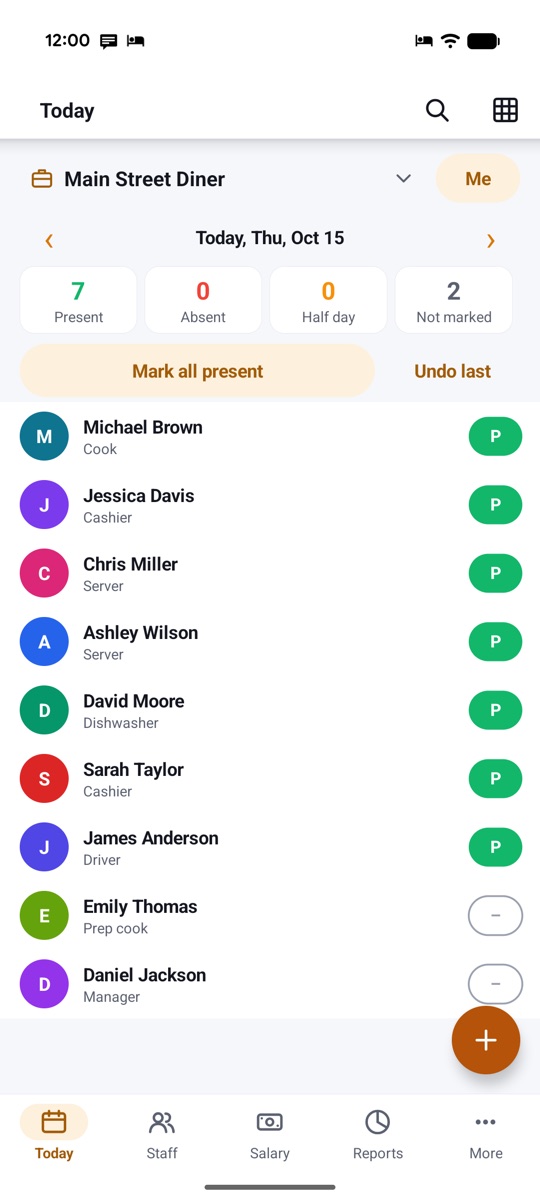
How StaffDays does it: The Today screen lists everyone active, with counters for present, absent, half day and not marked. Mark all present handles a normal day in one tap. Then tap a status chip to fix the exceptions: present, absent, half day, leave, week-off. Undo last fixes a slip.
When you need more, tap a name to add overtime, late minutes, in/out times with breaks, night shifts, extra shifts or a note. A reminder can nudge you only if someone isn't marked yet.
5. Salary rules that match how you pay
Small businesses pay in many ways: a monthly wage on a 26-day month, a daily rate for helpers, piece rates in a tailoring shop. An app that supports only one way forces you back to the calculator.
What to check: Wage types, how a month is counted, overtime, week-offs, holidays and pay periods.
How StaffDays does it:
- Wage types: monthly, daily, hourly or piece rate, with dated pay rises.
- Month basis: calendar days, a fixed 30 or 26 days, or working days only.
- Days off: paid or unpaid week-offs and holidays, half days, and editable holiday packs for 10 countries.
- Overtime: 1.25×, 1.5×, 2× or a fixed rate, counted per day or per week, with optional tiers.
- Pay periods: monthly, half-monthly, weekly or daily, also per person.
- Extras: bonuses, allowances, fines and deductions on any date.
Each business, up to 5, has its own rules. There's no limit on the number of staff.
6. Every salary figure explained in plain words
The real test of a payroll app is the day a staff member says, "My pay is short." Can you show them why?
What to check: Does the app show the calculation, or only the total?
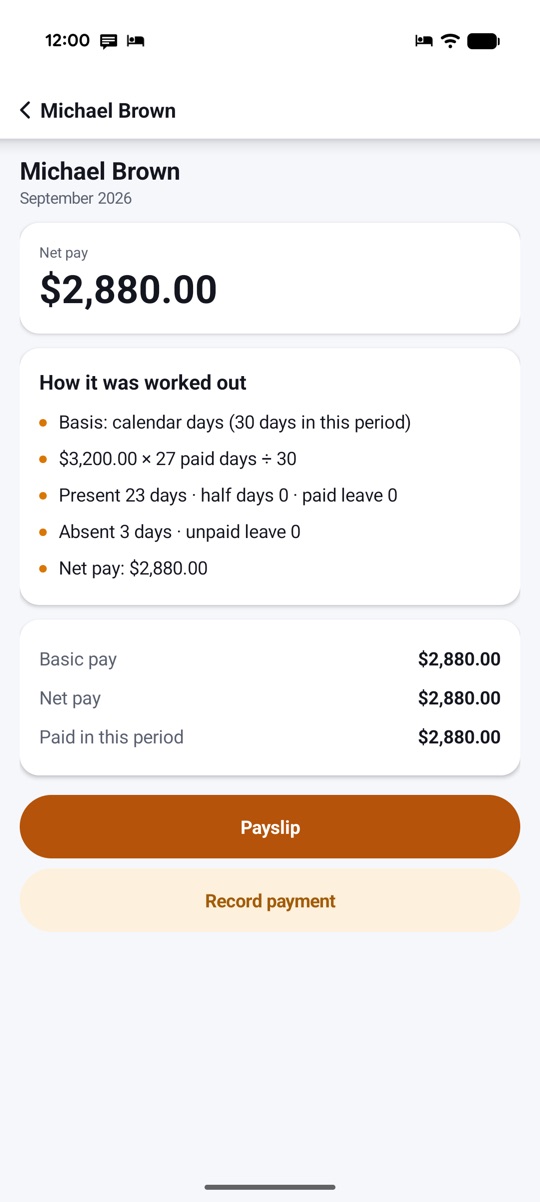
How StaffDays does it: Each salary has a How it was worked out card: the basis, the formula, days present and absent, leave and the net pay.
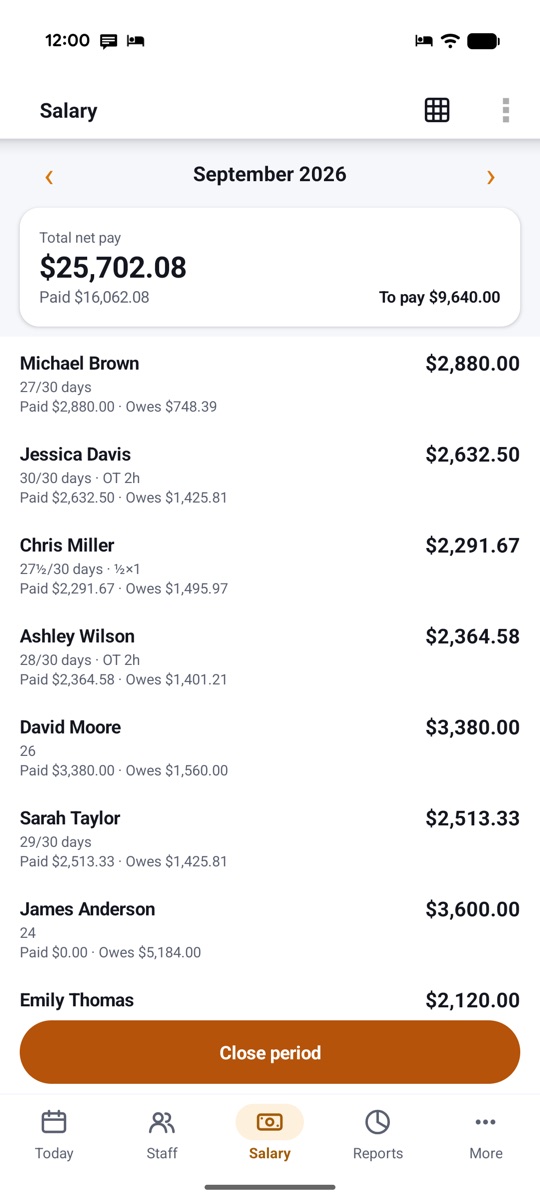
When the month is settled, Close period freezes the figures so a later rule change doesn't rewrite them. You can reopen a period if you need to.
7. Salary advances and part payments tracked per person
Advances are the most common source of month-end arguments. Someone took cash on the 5th, nobody wrote it down, and now the numbers don't match.
What to check: Can you record an advance, decide how it comes back, and see a running balance?
How StaffDays does it: Give advance records the amount, the date and the method. You choose the recovery: a fixed amount from each salary, all of it from the next salary, or no plan yet. You can skip a recovery or change the amount. A recovery never takes net pay below zero; the rest carries over.
Each staff member has a ledger of salaries, advances and payments, and the Salary screen shows what was paid and what is still owed.
8. Payslips and registers you can share and print
Your accountant and your staff will want paper or a file, not a screenshot.
What to check: Payslip format, register export, and file types.
How StaffDays does it:
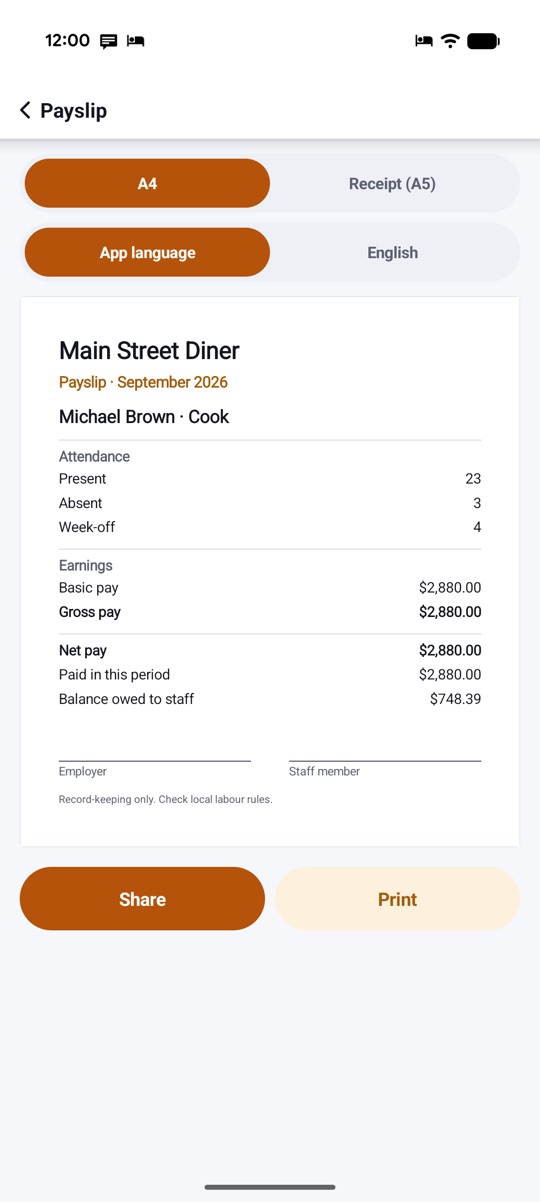
- Payslips as PDF in A4 or A5, with attendance, earnings, deductions, net pay and signature lines. You can add your logo, a signature and a second language.
- Monthly attendance register as PDF or CSV.
- Excel (XLSX) export of the register, salary, ledger and leave.
- Year statements per person and for the team.
9. Backups you control, and an easy move to a new phone
With no account, there's no cloud copy. So the backup story matters more.
What to check: Can you make a backup file? Is it encrypted? Can you restore it on another phone?
How StaffDays does it: You can back up now or set an automatic weekly or monthly backup to a folder you choose. It keeps the last 3, and you can encrypt backups with a passphrase of your own. To change phones, copy the file to the new phone and restore it. There's also CSV and JSON export.
Two phones marking the same team? StaffDays can merge the register from another phone's backup file. You see every change first, and closed periods are never changed.
10. Runs on old phones, for a one-time price
A register app often lives on a spare phone behind the counter. It should run there, and it shouldn't cost more each time you hire someone.
What to check: Minimum Android version, app size, and how you pay.
How StaffDays does it: StaffDays runs on Android 4.3 and newer. It is under 2 MB and fast with 1 GB of RAM. It also has two-pane tablet screens, a Wear OS app with a tile to clock in from your wrist, a home-screen widget and dark mode.
On price: StaffDays is a one-time purchase on Google Play. There's no subscription, no fee per staff member, no in-app purchases and no ads. The price is shown on Google Play in your currency.
What an offline record-keeping app won't do
Be clear about limits before you buy any app. StaffDays is a record-keeping tool:
- It pays no one and connects to no bank.
- It files nothing with any authority.
- It doesn't deduct statutory contributions or tax. Newer versions can show estimates from rates you enter, next to pay and never deducted.
Check local rules for what your business must calculate and report.
Who this kind of app suits
An offline, account-free register fits best if:
- You run a small team: a shop, restaurant, workshop, building crew, or a household with a maid, cook or driver.
- You mark attendance yourself, or on one shared tablet.
- You want the salary worked out and explained, but you pay people yourself.
StaffDays also has a Self mode for workers who want to track their own hours, for up to 3 jobs.
To see the daily routine in detail, read the beginner's guide to tracking attendance, salary and payslips. For a scene-by-scene look at the films, see the StaffDays feature tour. Every feature is on the product page.
Watch on YouTube
Prefer YouTube? The same films are on our channel: the full StaffDays tour and the vertical Short. There's also a Vietnamese version.
FAQ
Is there a staff attendance app that works with no internet at all?
Yes. StaffDays has no internet permission, so it works offline all the time. Your register stays on your phone.
Do I need to create an account to use StaffDays?
No. There's no sign-up and no password, and your staff don't log in or install anything.
Is StaffDays a subscription?
No. It's a one-time purchase on Google Play, with no in-app purchases, no ads and no fee per staff member.
How many staff and businesses can I add?
Unlimited staff, in up to 5 businesses, each with its own rules and holidays.
What happens to my data if I lose my phone?
StaffDays keeps no copy online, so make backups. Turn on automatic encrypted backups to a folder you choose, and copy the file somewhere safe.
Can staff clock in themselves?
Yes, with kiosk mode on a shop tablet. Each person taps their name and types their own PIN.