 StaffDays
Track staff attendance, salary and payslips: beginner's guide
A step-by-step guide to tracking staff working days, salary, advances and payslips with StaffDays on Android: set up, mark daily, close the month, share.
If you run a shop, a small restaurant, a workshop or a building crew, you probably keep attendance in a notebook and work out salary on a calculator at month end. It works until someone asks why their pay is short, or an advance from three weeks ago gets forgotten.
This guide shows how to do the same job in StaffDays, step by step. It covers the whole cycle: setting up, marking working days, recording advances, working out salary, closing the month and sharing payslips.
Want the two-minute version first? Watch the tour:
There is a scene-by-scene walkthrough of that film too.
What you need before you start
Not much:
- An Android phone or tablet with Android 4.3 or newer. StaffDays is under 2 MB and runs fast with 1 GB of RAM, so an old phone behind the counter is fine.
- Your staff list: names, roles and what each person is paid.
- Your own rules: how many days count as a month, which days are week-offs, and how you pay overtime.
You don't need an account, an internet connection or a computer. Your staff don't install anything.
Step 1: set up StaffDays the first time
When you open StaffDays for the first time, it asks a few questions:
- Mode. Choose Employer to keep a register of your staff, salaries and advances. Choose Self to track your own shifts, or Both to do both.
- What it's for. "A shop, workshop or team", or "My home" for a maid, cook or driver. "My home" starts with monthly pay on a 30-day month, one day of paid leave a month and simpler menus. You can change any of it later.
- App lock. You can lock the app with a PIN, or your fingerprint where the phone supports it. The app recommends it, because wages are private.
- Start. Begin with an empty register, or look around with sample data first.
You can keep up to 5 businesses in one app, each with its own staff, rules and paid holidays. Switch between them from the business name at the top of the Today screen.
Step 2: set your salary rules
Before you add staff, open the salary rules for your business. This is where StaffDays learns how you count a month. The settings cover basis, week-offs, overtime, periods and rounding.
Monthly salary basis. This decides what one day of a monthly salary is worth:
- Calendar days: the number of days in that month.
- Fixed 30 days.
- Fixed 26 days.
- Working days only: the working days in that period.
The screen shows an example, so you can see what one day is worth before you choose.
Week-offs and holidays. Choose whether week-offs and holidays are paid. StaffDays has editable holiday packs for 10 countries, including India, Indonesia, Vietnam, Nigeria and Brazil. The dates are estimates you can edit.
Overtime. Choose when overtime counts, over 8 hours a day or over 40 hours a week, and the rate: 1.25×, 1.5×, 2× or a fixed amount per overtime hour. You can also set tiers, for example 1.5× after 8 hours and 2× after 10.
Pay periods. Monthly, half-monthly, weekly or daily. You can also set a different period for one person.
Currency and rounding. StaffDays works in your local currency and rounds the way you pay.
Step 3: add your staff
Tap the + button and choose Add staff. For each person you enter:
- Name and, if you like, a role (cook, cashier, driver…).
- Wage type: monthly, daily, hourly or piece rate. For piece rate you name the unit, such as shirt, kg or piece.
- Week-off days for that person.
Already have a list in a spreadsheet? Use Import staff from CSV. The import screen tells you which columns it expects and points to any line it couldn't read.
When someone gets a raise, change their wage from a date. Earlier days keep the old wage, so past months don't change. Each person has a wage history.
Step 4: mark attendance every day
This is the part you'll do daily, and it is meant to take seconds.
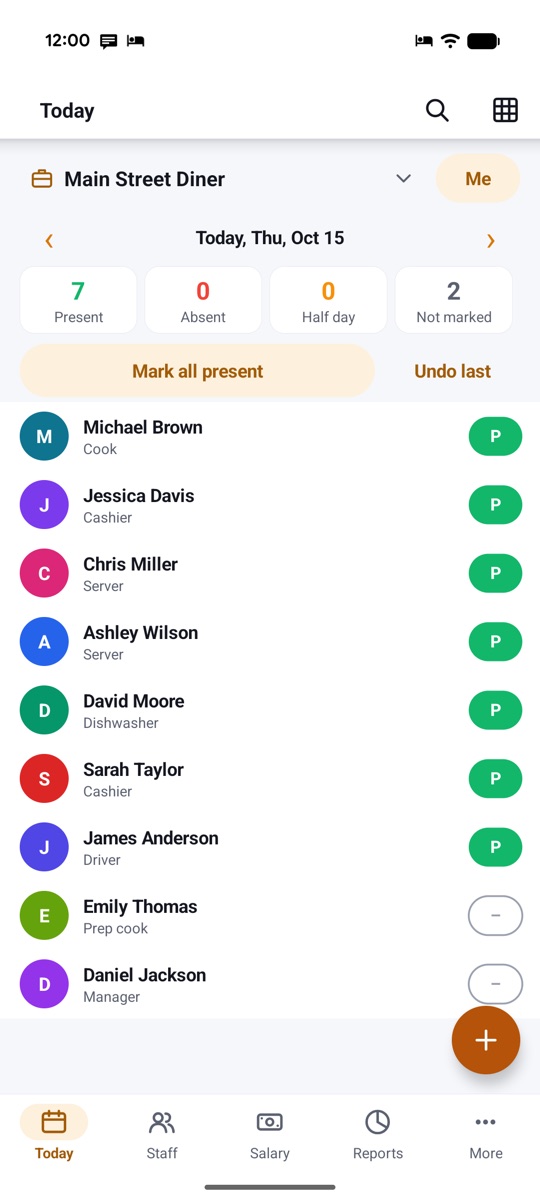
Open the Today screen. Everyone active is listed, with counters for present, absent, half day and not marked. Then:
- Tap Mark all present if most of the team came in.
- Fix the exceptions. Tapping a person's status chip cycles through present, absent, half day, leave and week-off, and then back to unmarked.
- Made a mistake? Undo last reverses it.
For more detail, tap the person's name to open their day. There you can add overtime hours, late minutes, in and out times with breaks, night shifts, extra shifts (P+½, P+P), piece counts and a note.
A reminder can nudge you around a time you pick, only if someone is not marked yet. A home-screen widget shows today's count, and shortcuts take you straight to marking.
Leave over several days
Someone is away for a week? Mark leave or absence for several days at once. StaffDays skips week-offs and holidays when it does this. Leave balances can build up monthly or yearly, with carry-over.
Step 5: check the monthly register
Open the Monthly register from the grid icon. It shows every person against every day of the month, with P for present, A for absent, ½ for half day, L for paid leave, WO for week-off and H for holiday.
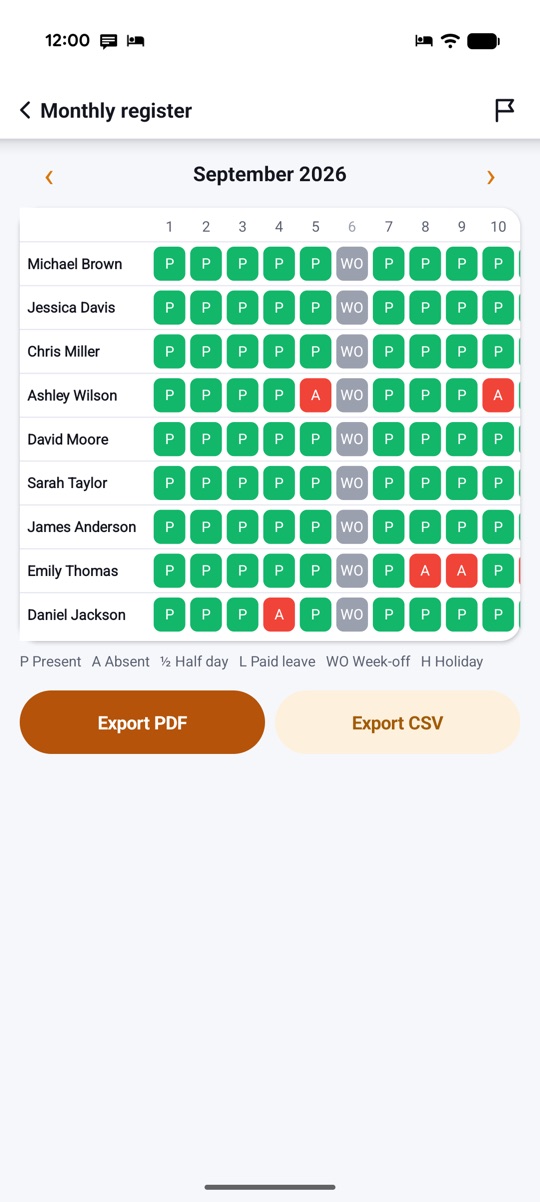
Use Export PDF to print or keep a copy, or Export CSV to open it in a spreadsheet. Newer versions also export Excel (XLSX) for your accountant.
Step 6: record salary advances and how they come back
Advances are where paper records most often go wrong. In StaffDays each advance has an owner, a date and a plan.
On a staff member's page, tap Give advance. Enter the amount and choose the recovery:
- Per salary: take back a fixed amount from each salary.
- All next salary: take it all back at the next salary.
- No plan: just record it for now.
The advance appears in that person's Ledger, next to their salaries and payments. You can skip one recovery or change the amount later. A recovery never pushes net pay below zero. Whatever doesn't fit carries over to the next salary.
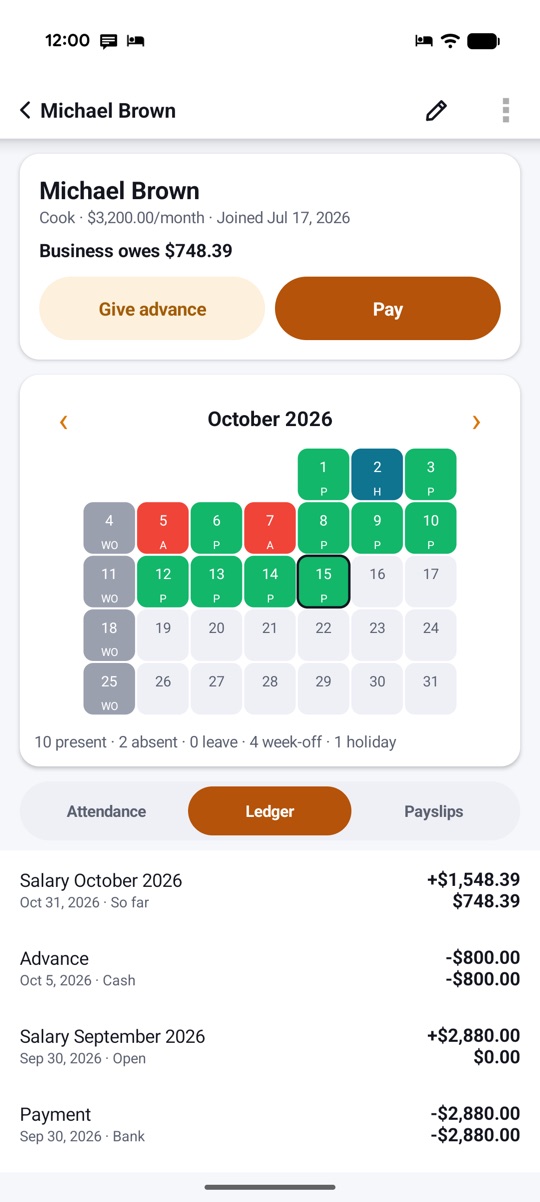
In the sample above, Michael Brown received an $800 cash advance on October 5. His ledger lists it between his October and September salaries and a bank payment.
Bonuses, fines and allowances
You can add bonuses, allowances, fines and other deductions on any date. They show up in the salary breakdown and on the payslip. There is also a festival bonus helper for 13th month pay, THR, Tết, Eid or Diwali.
Step 7: work out salary at month end
Open the Salary tab. You don't need to do any sums here. StaffDays has already worked out each salary from the days you marked and the rules you set.
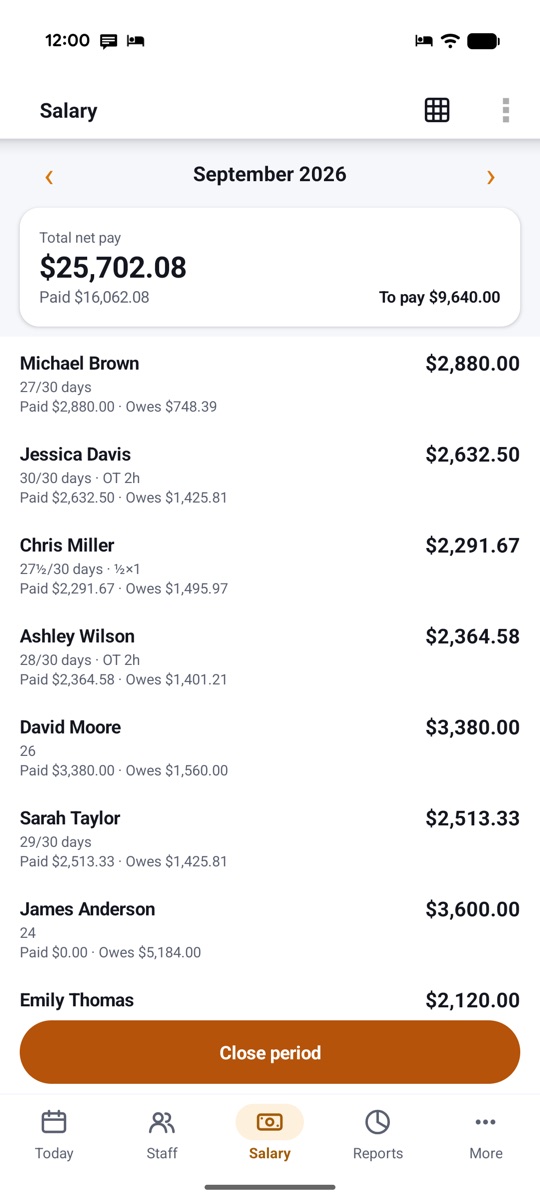
At the top you see the total net pay for the month, how much is paid, and how much is left to pay. Each row shows a person's days (for example 27/30 days), any overtime, what was paid and what is still owed.
Tap a name to see How it was worked out, in plain words:
For the cook in our sample it reads: calendar days basis, $3,200.00 × 27 paid days ÷ 30, present 23 days, absent 3 days, net pay $2,880.00. If a staff member asks about their pay, show them this card.
Record payments
When you hand over the money, tap Record payment on the person's salary page. You can pay in parts, and the balance stays clear. Payment methods include cash, bank, UPI or wallet, and cheque.
On payday you can also pay everyone in one step. Each amount stays editable, and one Undo reverses the whole batch. StaffDays can show the cash notes and coins to withdraw and split them into one envelope per person.
Step 8: close the month
When the month is settled, tap Close period at the bottom of the Salary screen. StaffDays explains what happens:
- The salary figures are frozen, so later rule changes don't alter them.
- Advance recoveries for that period are recorded.
- You can reopen the period later if you really need to. Reopening asks you to confirm by typing, and it removes that period's advance recoveries.
While a period is closed, its days can't be edited by accident. A banner tells you to reopen it on the Salary screen first.
Step 9: make and share payslips
From a person's salary page, tap Payslip.
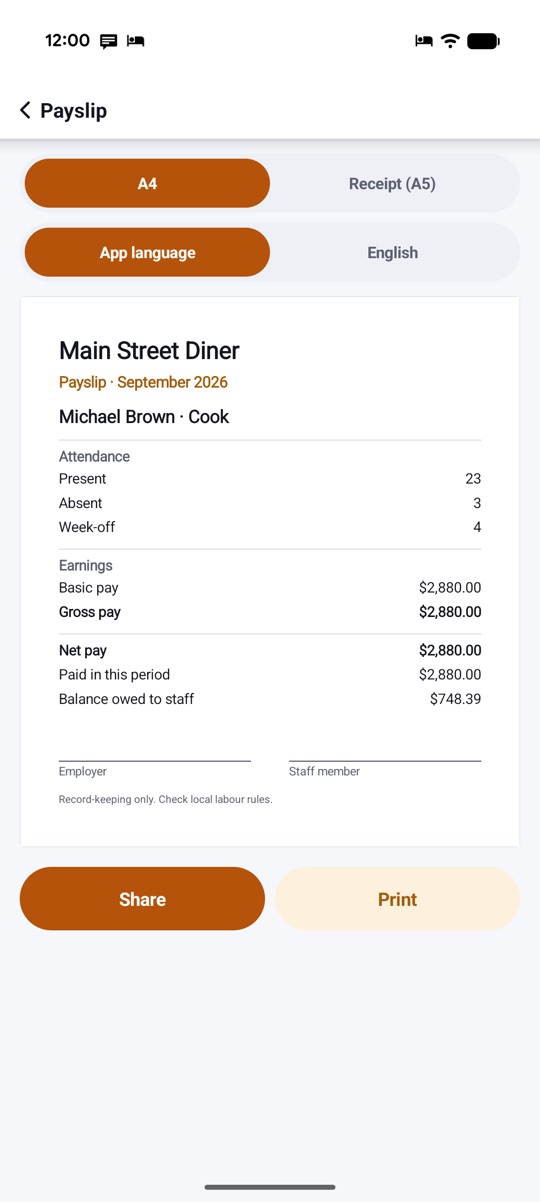
You choose:
- A4 or Receipt (A5) size.
- App language or a second language, such as English, for staff who read another language.
The payslip lists attendance (present, absent, week-off), earnings, gross pay, net pay, the amount paid in the period and any balance owed to the staff member. At the bottom there are signature lines for the employer and the staff member, and a note: "Record-keeping only. Check local labour rules."
Tap Share to send the PDF through any app on your phone, or Print. You can add your logo, a signature and a footer to the payslip template.
Step 10: look at reports and keep a backup
The Reports tab turns your register into charts: attendance per day, salary cost by month, overtime and advances outstanding. Each chart has Show as table if you prefer numbers.
Finally, set up a backup. Under backup and restore you can:
- Back up now to an encrypted file you can keep or move to a new phone.
- Choose a backup folder, and turn on automatic weekly or monthly backup that keeps the last 3.
- Add a passphrase. Without one, the file is readable by anyone who has it.
To move to a new phone, copy the backup file over and restore it there.
A daily and monthly routine
Once set up, the routine is short:
- Every day: open Today, tap Mark all present, fix the exceptions.
- When someone needs cash: Give advance, choose how it comes back.
- At month end: check the Salary tab, record payments, close the period.
- After closing: share payslips, export the register, check your backup.
If you're still choosing an app, read our checklist for an offline staff attendance and payroll app. Everything StaffDays does is listed on the product page.
Watch on YouTube
Prefer YouTube? The same films are on our channel: the full StaffDays tour and the vertical Short. There's also a Vietnamese version.
FAQ
Can I use a 26-day salary month?
Yes. Each business can count a month as calendar days, a fixed 30 or 26 days, or working days only, with paid or unpaid week-offs and holidays.
What if an advance is bigger than the next salary?
A recovery never takes net pay below zero. The part that doesn't fit carries over to the next salary, and the person's ledger shows the balance.
Can two people mark attendance on two phones?
Yes. Make a backup on the other phone, copy the file over and merge it. You see every change before anything is merged, and closed periods are never changed.
Do staff need the app to get their payslip?
No. Only you install StaffDays. Share the PDF payslip with any app on your phone, or print it.
Does StaffDays calculate PF, ESI or tax?
It doesn't deduct them. StaffDays is for record-keeping: attendance, wages, advances and payments. Newer versions can show estimates from rates you enter, next to pay and never deducted. Check your local rules.
Is my data sent anywhere?
No. StaffDays has no internet permission. Only what you share yourself, such as a payslip, leaves your phone.