 StaffDays
 feature tour on video: attendance and salary
Two short films walk through StaffDays: one-tap attendance, a salary worked out line by line, the monthly register, advances, payslips and dark mode.
The quickest way to see what a staff attendance app does is to watch it run. So we made two short films about StaffDays: a tour of just under 40 seconds for a laptop or TV, and a cut of about 26 seconds for your phone.
Every screen in them is a real StaffDays screenshot, with sample data: a made-up restaurant called Main Street Diner and its nine staff.
Below is what each scene shows, and where to read more.
Scene 1: the Today screen, offline and with no account
The film opens on the Today screen. At the top sits the business name, Main Street Diner, and the date. Four counters show 7 present, 0 absent, 0 half day and 2 not marked. Below them are two buttons, Mark all present and Undo last, and then the team: a cook, cashiers, servers, a dishwasher, a driver, a prep cook and a manager.
Two labels pop up beside the phone:
- Works offline. StaffDays has no internet permission at all. The app can't send anything anywhere.
- No account · No ads. You open the app and start. There is no sign-up, no password and no staff login.
The StaffDays logo and the line "Attendance and salary for a small team" land in the corner.
Scene 2: pay your team in minutes
A short title card follows: "Pay your team in *minutes*." That is the idea behind the whole app. You mark days through the month, and at month end the salary is already worked out.
Scene 3: salary, worked out line by line
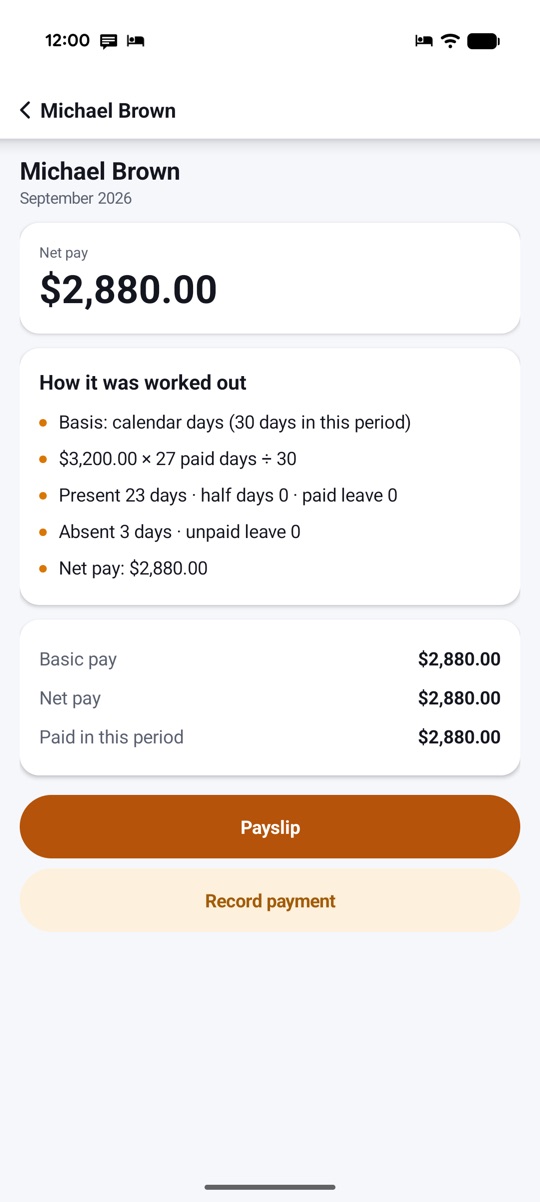
The camera locks onto one card on a staff member's salary page: How it was worked out. For Michael Brown, the cook, in September 2026 it reads:
- Basis: calendar days (30 days in this period)
- $3,200.00 × 27 paid days ÷ 30
- Present 23 days · half days 0 · paid leave 0
- Absent 3 days · unpaid leave 0
- Net pay: $2,880.00
This is the part that saves arguments. Nobody has to trust a number they can't check. The basis is your choice per business: calendar days, a fixed 30 or 26 days, or working days only.
Scene 4: the whole team, one tap
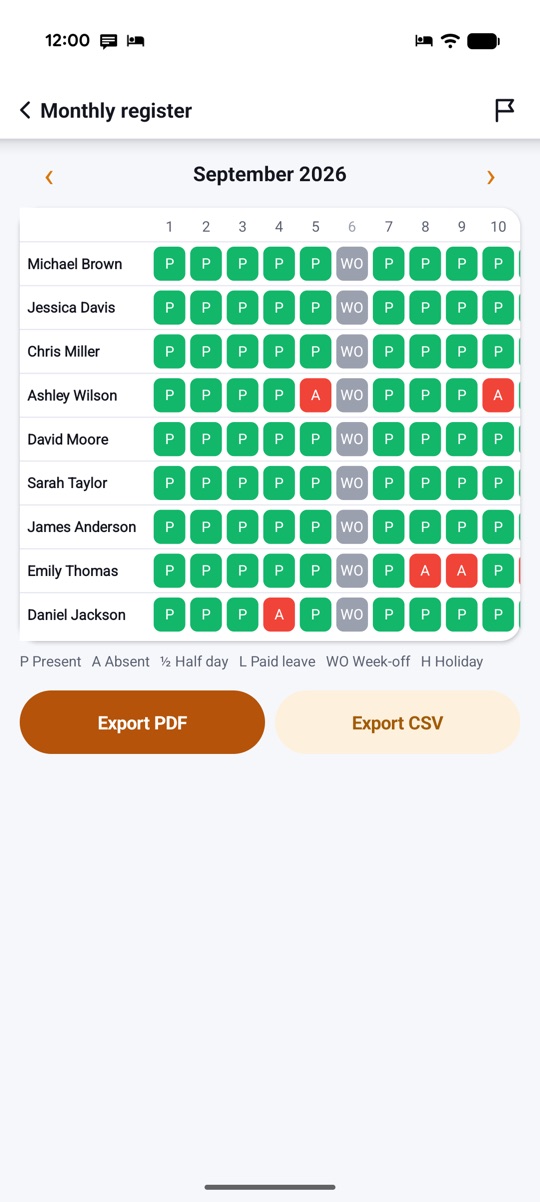
Next the camera glides past three phones under the heading "The whole team, one tap": the Today screen, the Monthly register and the Salary screen. Words float behind them: Present, Half day, Overtime, Advances, Payslips.
The middle phone is the star. The Monthly register for September 2026 is a grid of names and days, with P for present, A for absent and WO for week-off. Two buttons sit below it: Export PDF and Export CSV.
On the Today screen, one tap on a staff member's status changes it. Tap the name to open the day and add overtime, late minutes, in/out times or a note. The beginner's guide walks through it.
Scene 5: every advance on the record
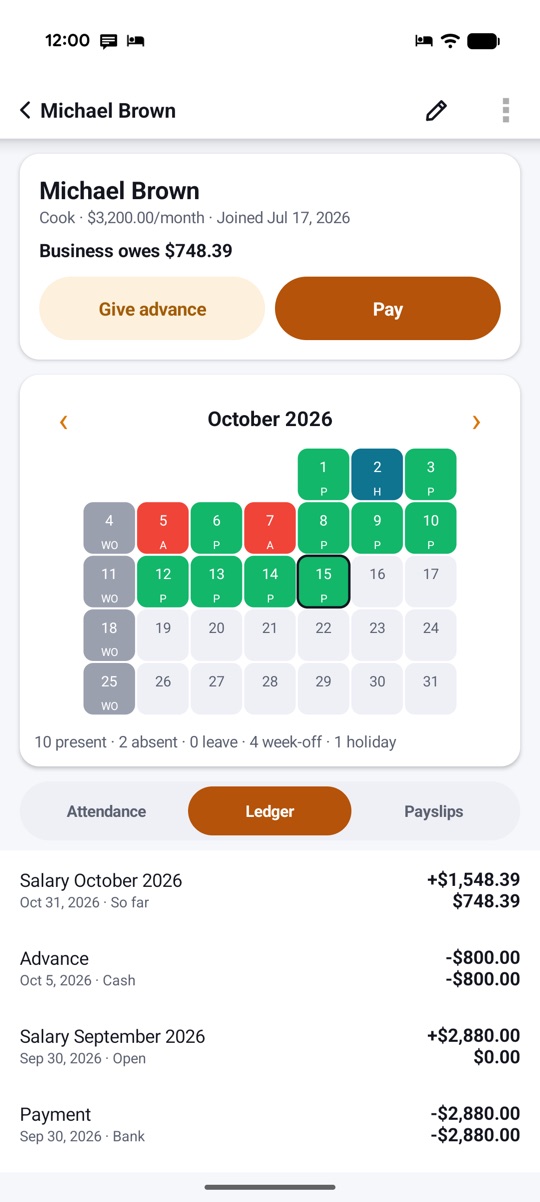
A second title card: "Every *advance* on the record." Salary advances are where paper registers go wrong most often, so StaffDays gives each one a line in the staff member's ledger and a plan for getting it back.
Scene 6: payroll for everyone
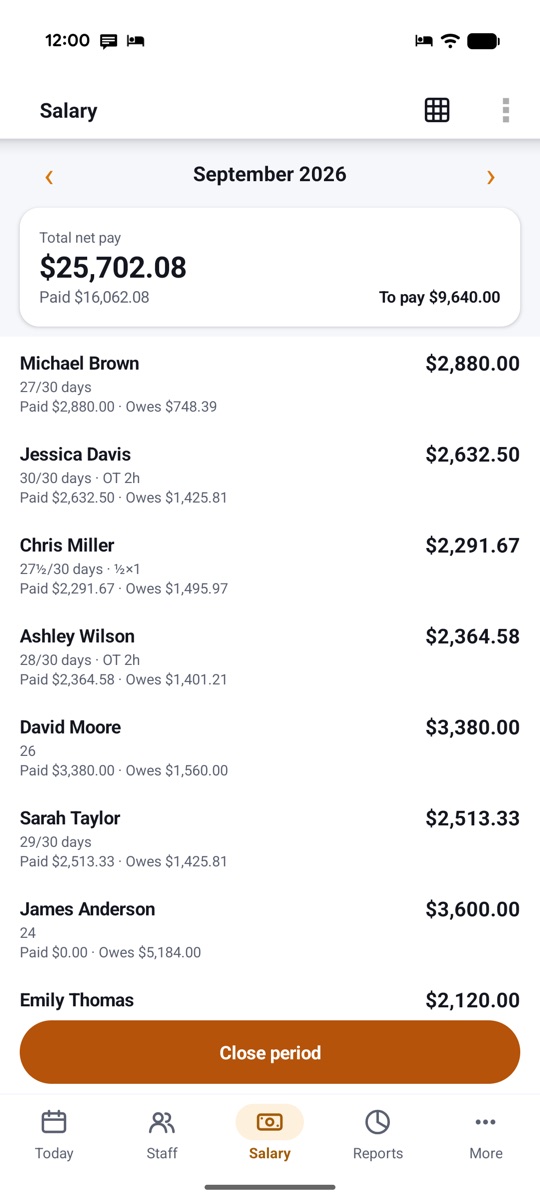
A big number rolls up: $25,702.08, the total net pay for September. The Salary screen settles in beside it, with the same total highlighted. Under it: paid $16,062.08, to pay $9,640.00.
Each row shows one person: days worked out of the period (for example 27/30 days), overtime such as "OT 2h", what was paid and what is still owed. A Close period button sits at the bottom. Closing a month freezes its figures, so a later rule change doesn't rewrite them.
Scene 7: pay, advances and shifts in one book
Four cards stack up one by one, counting to 4/4, under "In one book: pay, advances and shifts, kept together, per person":
- The team total: $25,702.08, paid $16,062.08, to pay $9,640.00.
- One person's net pay: $2,880.00.
- Michael Brown's card: Cook, $3,200.00 a month, joined Jul 17, 2026, "Business owes $748.39", with Give advance and Pay buttons.
- A Self mode card: this week 29h 27m worked, overtime 2h 15m, and expected pay this month of $878.85 for 46h 57m.
The last card comes from Self mode, for people who work for someone else and want to track their own hours. It has one big clock-in button, breaks, and weekly and monthly totals.
Scene 8: dark mode for after closing
A Dark mode switch flips, and the Reports screen turns dark: advances outstanding $800.00, one staff member with an advance, attendance per day as a bar chart, and a salary cost chart below. The line reads "Easy on the eyes after closing."
Every chart in Reports has a Show as table link, so you can read the numbers instead of the bars.
The film ends on the app icon with "One-time purchase · No account · Works offline" and a Google Play button.
The phone cut
The vertical film is about 26 seconds. It drops the two title cards and the three-phone glide, and runs Today, the salary breakdown, dark mode, the payroll total and the stacked cards, in that order. It is made for Shorts, Reels and TikTok:
Both films, a Vietnamese version and all the store screenshots are on the product page. If you're comparing apps, our checklist for an offline attendance and payroll app explains what to look for.
Watch on YouTube
Prefer YouTube? The same films are on our channel: the full StaffDays tour and the vertical Short. There's also a Vietnamese version.
FAQ
Is the data in the video real?
No. It's the sample data our store screenshots use: a made-up restaurant with nine staff. Your own StaffDays starts with an empty register, or you can look around with sample data first.
Does the app need internet or an account for what's shown?
No. StaffDays has no internet permission and no account. Everything in the films works offline on Android 4.3 and newer.
Do my staff need to install anything?
No. Only you install StaffDays. You can share payslips with any app on your phone, or print them.
Does it calculate tax or statutory contributions?
No. StaffDays is a record-keeping tool for attendance, wages, advances and payments. It pays no one, connects to no bank and files nothing. Check your local rules.
Can I share these videos?
Yes. Both films are on the product page, and you're welcome to share them.